Direct Answer
To uninstall Slack on Windows 11, open Settings and go to Apps > Installed apps. Search for Slack, click the three-dot menu next to it, and select Uninstall. Confirm the removal when prompted. Windows will remove the Slack desktop app from your computer. Uninstalling Slack does not delete your Slack account, messages, or workspace data.
Slack is a workplace communication app used for team messaging, file sharing, voice calls, and collaboration. It is useful for work and online communities, but you may no longer need the desktop app on your PC.
If you want to remove Slack from your computer, the process is simple. You don’t need a third-party uninstaller for the normal removal process. Windows OS lets you uninstall apps directly from Settings.
In this guide, you’ll learn how to uninstall Slack on pc, how to check that it has been removed, what happens to your Slack account and messages, and what to do if Windows refuses to uninstall the app.
- How to Uninstall Slack on a Computer
- Watch the Slack Uninstall Process
- Does Uninstalling Slack Delete Your Account?
- Does Uninstalling Slack Delete Messages?
- How to Completely Remove Slack From Windows
- What Happens After You Uninstall Slack?
- What If Slack Won't Uninstall?
- Should You Uninstall Slack or Just Stop It From Running?
- How to Uninstall Slack on Mac
- How to Uninstall Slack on Android
- How to Delete Slack on iPhone
- Uninstalling Slack vs. Deactivating Your Account
- Final Thoughts
How to Uninstall Slack on a Computer
The quickest way to uninstall Slack is through the Windows Settings app.
Follow these steps.
1. Search for installed apps
Click inside the search box in your Windows taskbar. Type “installed apps” or “uninstall” there.
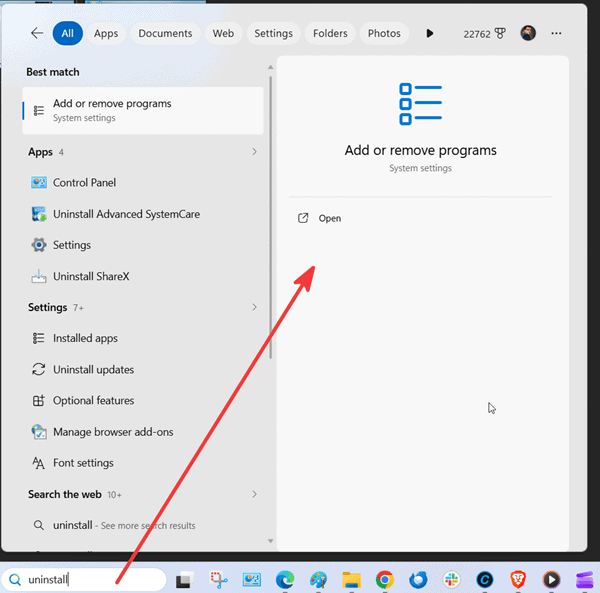
Windows will show ‘Add or remove programs’. Open it.
You can also press Windows + I on your keyboard to open Settings directly.
2. Search for Slack
Installed apps will appear in settings.
This section lists all apps installed on your PC. You can filter results by drives and sort them by name, date, and size.
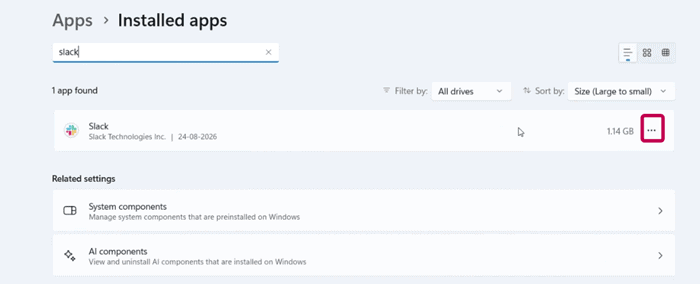
If you have a large number of applications, you don’t need to scroll through the entire list. Use the search box near the top of the page.
Search for Slack.
3. Click more
Windows should filter the list and show the Slack application. This is also useful if you are not sure whether Slack is still installed.
Click the three-dot menu next to Slack.
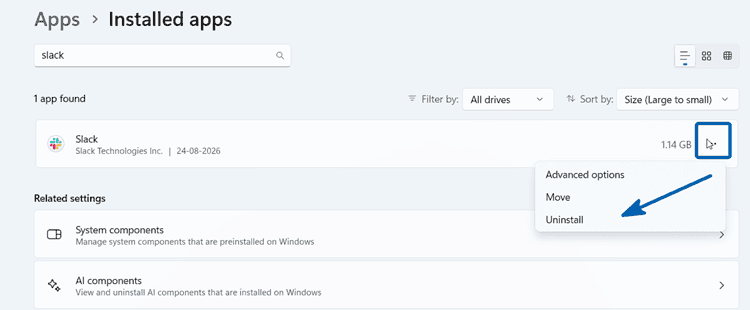
A small menu will appear. Click on Uninstall.
Windows will display a confirmation message before the removal starts. Follow the instructions shown on the screen.
Depending on how Slack was installed, Windows may launch the application’s own uninstaller.
Confirm that you want to uninstall Slack. Wait for a few moments. Windows will remove the application from your PC.
The process should only take a short time. Once it finishes, Slack should no longer appear in the Installed apps list.
That’s all you need to do for a normal Slack uninstall on a Windows PC.
Watch the Slack Uninstall Process
If you prefer to follow a visual tutorial, the process is also shown in our step-by-step video.
This video explains how to uninstall Slack on a Windows PC and smartphone in a step-by-step manner.
Does Uninstalling Slack Delete Your Account?
No. Uninstalling Slack does not delete your Slack account.
This is an important distinction.
Removing the desktop application only removes the software from your computer. Your Slack account, workspace membership, conversations, and other information associated with your account are handled separately.
If you install Slack again later and sign in with the same account, you can access the workspaces that are still available to you.
If your goal is to stop using a particular Slack workspace or deactivate your account, you need to take action within Slack. Removing the Windows application is not the same as deactivating an account.
So, if you’re simply cleaning up your PC, you can uninstall Slack without treating the uninstall as an account deletion.
Does Uninstalling Slack Delete Messages?
No. Removing Slack from your Windows PC does not mean that your Slack messages are deleted.
Your Slack desktop application is simply the software used to access your workspaces from your computer. Uninstalling it doesn’t act as a command to erase your workspace content.
This is useful if you’re troubleshooting Slack and plan to reinstall it later.
For example, suppose Slack keeps showing a loading problem after an update. You could uninstall the desktop application, restart Windows, and install Slack again. Your account isn’t removed just because you removed the application.
How to Completely Remove Slack From Windows
For most users, the normal Windows uninstall process is enough.
Some users, however, search for how to completely uninstall Slack because they want to remove leftover application files as well.
Slack’s own Windows documentation describes additional cleanup steps for its desktop application. For the direct-download version, Slack has documented checking the %AppData% and %LocalAppData% locations after uninstalling and removing the Slack folders found there.
Before deleting anything manually, make sure Slack has already been uninstalled through Windows.
Remove Slack’s leftover AppData folders
Press Windows + R to open the Run dialog.
Type:
%AppData%
Press Enter.
Look for a Slack folder. If one remains after the uninstall, you can remove it.
Then open the Run dialog again and enter:
%LocalAppData%
Look for the Slack folder and remove it if it is still present.
Be careful when deleting application files
Don’t start deleting folders from Windows system directories just because they contain the word Slack.
For a normal user, the safest approach is:
- Uninstall Slack through Windows Settings.
- Restart the PC if needed.
- Check the AppData locations only if you have a specific reason to remove leftover Slack data.
- Avoid registry changes unless you know exactly what you’re removing.
You can also use Slack’s official desktop app documentation when you need version-specific cleanup instructions.
What Happens After You Uninstall Slack?
After you uninstall Slack, the desktop application is removed from your Windows PC.
You will no longer be able to open Slack through its installed desktop application.
You can still use Slack through a web browser if your workspace allows it. You can also reinstall the desktop application later.
Uninstalling the application can be useful when:
- You no longer use Slack on the PC.
- You want to reinstall Slack to fix an application problem.
- You are switching to browser-based Slack.
- You are cleaning up unused applications.
- You are preparing a PC for another user.
Windows provides storage information under Settings → System → Storage, where you can see how disk space is being used by installed applications and other categories.
What If Slack Won’t Uninstall?
Sometimes an application may refuse to uninstall. Slack may still be running in the background, or Windows may encounter an issue with the application’s installation data.
Try these solutions in order.
Close Slack Completely
Before starting the uninstall, make sure Slack is closed. Check the Windows taskbar and notification area for a running Slack process.
If Slack is still running, close it and try the uninstall again.
Restart Your PC
A simple restart can clear a process that is preventing the application from being removed.
After Windows starts again, open Settings and try:
Apps → Installed apps → Slack → Uninstall
Microsoft also recommends restarting Windows as an initial troubleshooting step when an app cannot be uninstalled.
Try the Start Menu
Windows 11 provides another simple uninstall route.
Click Start → All apps.
Find Slack in the application list.
Right-click Slack and select Uninstall.
Microsoft lists this as another supported method for removing applications in Windows 11.
Try Control Panel
If the Settings method doesn’t work, you can try the traditional Control Panel route.
Open Windows Search and type Control Panel.
Open Control Panel and select:
Programs → Programs and Features
Find Slack in the list.
Right-click it and select Uninstall or Uninstall/Change. Follow the instructions displayed by the uninstaller.
Use Microsoft’s Program Install and Uninstall Troubleshooter
If Windows reports an error while trying to remove Slack, Microsoft’s troubleshooting tools can help with installation and removal problems.
These tools can address issues such as incomplete installation data that prevents a program from being removed normally.
This is a better starting point than randomly deleting program folders or registry entries.
Should You Uninstall Slack or Just Stop It From Running?
You don’t always need to uninstall Slack.
If you still use Slack but don’t want it to launch when Windows starts, you can manage startup applications through Windows Settings.
Go to:
Settings → Apps → Startup
Find Slack and turn off its startup setting.
Microsoft provides startup controls in Windows 11 that let you choose which applications launch when you sign in. This option is useful if Slack is still part of your workflow, but you don’t want it to open automatically.
If you have stopped using Slack altogether, uninstalling the application makes more sense.
How to Uninstall Slack on Mac
The Windows method above doesn’t apply to Mac computers.
On macOS, you can usually remove an application through Finder. Apple recommends using an application’s own uninstaller when one is provided because it can remove additional components associated with the app.
If there is no dedicated uninstaller, Apple provides instructions for moving an app to the Trash and emptying the Trash.
How to Uninstall Slack on Android
Let us check how to uninstall Slack on Android.
Find the Slack app on your phone.
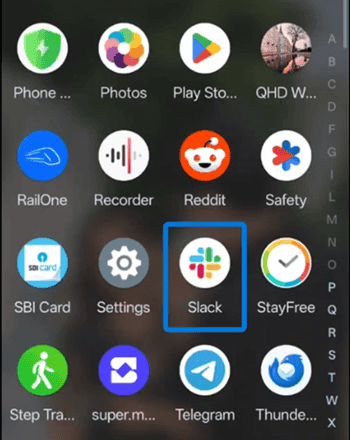
Press and hold the Slack icon.
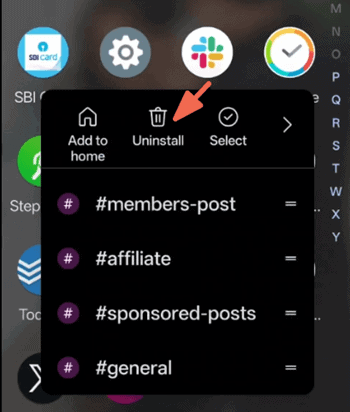
Select Uninstall or the equivalent option shown by your Android device.
A confirmation box will appear. Click OK to confirm. Android will remove Slack from your device in seconds.
How to Delete Slack on iPhone
On an iPhone, locate the Slack app on your home screen. Touch and hold it to get a small uninstall menu.
Tap Remove App. Then tap Delete App to confirm your request.
Remember that deleting the app from an iPhone doesn’t mean your Slack account has been deleted.
Uninstalling Slack vs. Deactivating Your Account
These two actions serve separate purposes.
Uninstalling Slack removes the application from your device.
Deactivating your Slack account affects your access to a Slack workspace and is handled through Slack.
If you’re leaving a company or community that uses Slack, check with the workspace owner or administrator before taking action on your account.
If you’re simply removing unused software from your personal computer, you can uninstall Slack without deactivating your account.
This distinction also helps avoid a common mistake: deleting the application because you think it will remove your account.
Final Thoughts
If you only want to remove Slack from your Windows 11 computer, you don’t need a complicated process.
Open Settings, go to Apps → Installed apps, search for Slack, open the three-dot menu, and select Uninstall.
That’s the recommended starting point for most users.
If your goal is a deeper cleanup, you can check Slack’s documented AppData locations after the uninstall. If Windows refuses to remove the application, try restarting your PC, using Control Panel, or following Microsoft’s troubleshooting steps.
Most importantly, remember that uninstalling Slack is not the same as deleting your Slack account. Removing the application only removes the software from your device.
You may also be interested in these posts ↴