
Direct Answer
To delete a Shopify store, log in to your Shopify admin dashboard, go to Settings > Plan, and select Deactivate Store (or Cancel Subscription and Deactivate Store). Follow the prompts to confirm your decision and enter your password if required. Before deleting your store, back up important data, fulfill pending orders, and cancel any third-party app subscriptions to avoid unexpected charges.
Shopify is a great platform for building high-converting online stores and selling products worldwide. This post describes how to delete products, pause, deactivate, and delete a Shopify store.
Whether you are selling physical or digital goods, Shopify is the first platform that comes to mind. It is user-friendly and secure. You can sell products across various categories and offer services from this all-rounder eCommerce platform.
Add products with pricing, promote your items on social sites, accept payments, and ship products globally. Shopify offers built-in tools and integrations to handle all business activities under one roof.
You may be thinking of deleting your Shopify store because you have found another e-commerce platform that is more convenient than Shopify, or because you are going to focus more on in-store business. Let’s see how to do it,
How to Delete Products on Shopify
If you don’t want to delete the entire Shopify store, but only the product added, then do as below,
- Visit Shopify and click login from the top menu bar.

Log in with your email and password. Otherwise, connect your Apple, Facebook, or Google accounts to access your Shopify dashboard.
- After signing in, you will see Shopify’s account dashboard. Scroll down through General settings to locate Stores section.
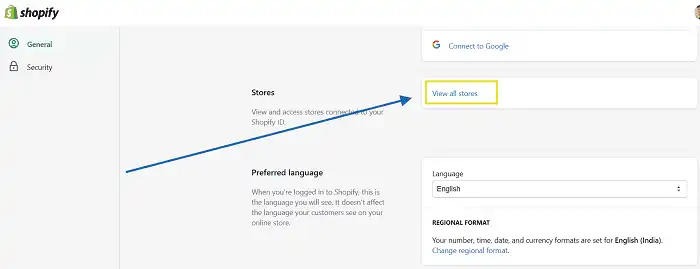
Click View all stores.
- On the next page, it will list all your Shopify stores.
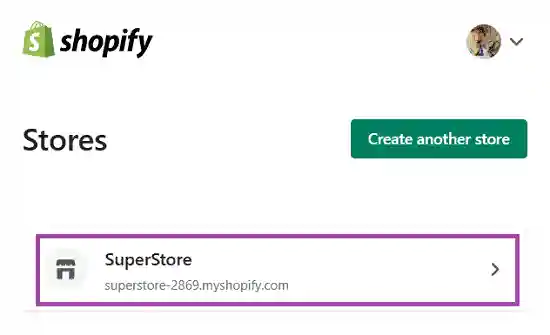
Select your store to delete products in it.
- Visit the Products menu from the left sidebar to view all products in your store.
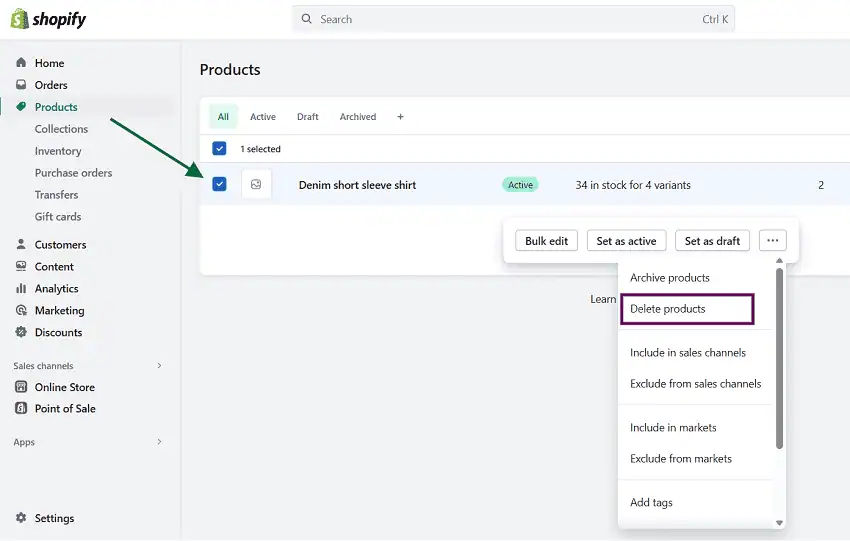
Select the checkbox to delete a product. On click, it will show additional options to bulk edit and unpublish products. Tap on the three-dots icon to archive products, add tags, etc. Click Delete products to delete selected one or more products.
A pop-up box will appear to confirm your request. Click on Delete again. Shopify will send a confirmation message to your email account once the store is closed.
That’s it.
How to Delete Shopify Store
Before deleting your Shopify store, make sure of the following:
- No outstanding bills in your Shopify account
- Cancel third-party integrations/subscriptions to avoid future billing
- No outstanding gift cards in your store
- Transfer the custom domain that you bought from Shopify to another domain registrar
- Remove the custom domain that you bought from another registrar through the Shopify admin
- Export your store information and billing history in CSV format
Here’s how to deactivate and delete your Shopify store.
- Sign in to Shopify and head to the Shopify admin panel.

Open settings from the bottom-left corner.
- Choose Plan from the left pane.
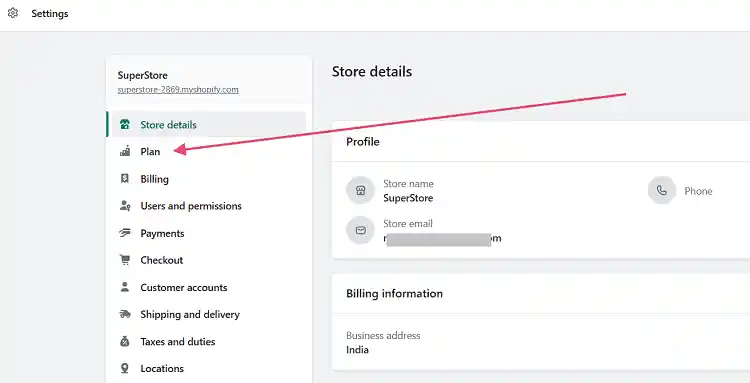
Then, Shopify displays information about your plan, due date, and default payment method. Click on the Deactivate Store button to proceed.
A pop-up box will appear asking the reason for the deactivation. Select an appropriate option and continue.
Enter your Shopify password, then click Deactivate again.
Upon deactivation, you will lose the store URL. In the future, you can create a new store with the same name. But the Shopify domain is unique to each store, and you won’t get the same URL again.
Deactivating a Shopify store is just like deleting it permanently. After deactivation, you will lose the URL permanently (except for custom domains), and it will not be possible to recover it. In short, deactivating your Shopify store deletes it.
If you are in a free trial, you can’t deactivate or pause Shopify stores. These options are available only to paid users. Similarly, the Pause and Build plan is not available for Shopify Plus customers.
How to Pause a Shopify Store
If you don’t want to lose your store URL but need to temporarily pause sales operations, it is better to pause your store.
Pausing helps you to work on the store, and customers can access it as usual. But they won’t get the checkout option. It is the ideal way to perform maintenance on your store and restore it to its original state later.
Follow these steps to pause your Shopify store,
- Sign in to your Shopify admin panel
- Open Settings from the bottom-left corner
- Head to Plan > Deactivate store
- Select Pause and Build
- Switch to Pause and Build to confirm.
Your Shopify store has been successfully paused and moved to the Pause and Build plan. It costs just $9 per month, which is lower than their basic plan.
When you pause a Shopify store, the following things will occur:
- You can still edit the product and manage settings. But store checkouts, POS, discount, gift cards, and abandoned checkout recovery can’t be used.
- Third-party integrations like Google and Facebook won’t work to publish products
- Customers can view your products, but they can’t buy them
How to Reopen a Paused Shopify Store
Steps to reopen your Shopify store from the Pause and Build plan,
- Log in to Shopify and open Settings from the admin panel
- Visit Plan from the left pane
- Pick a plan for your store
- Analyze plan details and click Start Plan.
Your store is active now. If your store was locked with a password, it should be removed when paused. Otherwise, customers won’t be able to visit your site.
How to Lock or Hide a Shopify Store
Shopify allows merchants to lock their store using a password. Let us check how it is possible,
- Sign in to Shopify and visit your admin panel.
- Expand the Online Store menu under Sales channels
- Open Preferences
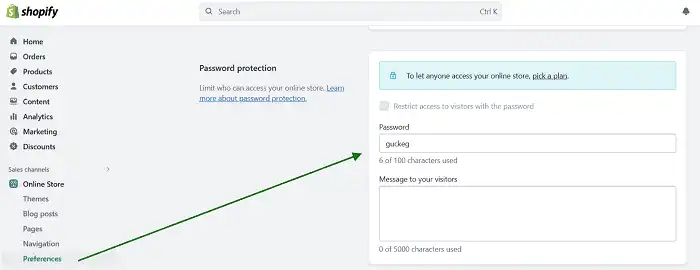
- Locate the Password Protection section on the main screen. Check the ‘Restrict access to visitors with the password’ box. Enter a password to prevent unauthorized entries on your store.
Next, type a message for your store visitors. It’s a good idea to briefly describe why your store is password-protected. You can inform them that the website is undergoing maintenance and will be back on MM/DD.
Save changes.
Can I cancel Shopify anytime?
Yes, you can cancel a Shopify subscription at any time. Make sure that you don’t have any outstanding payments. If there are any pending bills, you can’t cancel the subscription or close your store.
Shopify can be cancelled at any time, but you are obligated to pay until the end of the current billing cycle. Thereafter, you will lose access to the store and content.
If you are on a free trial, head to Settings > Plan and Deactivate trial. It will immediately close your Shopify store.
You may also be interested in these posts ↴