Pop-ups are useful when a website needs to open a payment window, show a document, display a login form, or launch another part of a web app. However, your browser may block that window before it appears.
If that happens, you may need to turn off the pop-up blocker or allow pop-ups for that website.
The good news is that you can change this setting in a few steps. Chrome, Safari, Firefox, and Microsoft Edge all provide controls for pop-ups. You can also change the settings on an iPhone or Android phone.
This guide explains how to turn off pop-up blocker settings on the major browsers. It also shows how to allow pop-ups for just one website, how to turn the blocker back on, and what to do if pop-ups still do not appear after changing the setting.
- What is a Pop-Up Blocker?
- Why Are Pop-Ups Blocked?
- How to Turn Off Pop-Up Blocker in Chrome
- How to Disable the Chrome Pop-Up Blocker on Windows and Mac
- How to Allow Pop-Ups for One Website in Chrome (One-time)
- How to Add a Website to Chrome's Allowed List
- How to Turn on the Chrome Pop-Up Blocker
- How to Turn Off Pop-Up Blocker in Firefox
- How to Allow Pop-Ups for One Website in Firefox
- How to Turn On the Firefox Pop-Up Blocker
- How to Turn Off Pop-Up Blocker in Microsoft Edge
- How to Allow Pop-Ups for a Specific Website in Edge
- How to Turn Edge's Pop-Up Blocker
- How to Turn Off Pop-Up Blocker in Safari on Mac
- How to Allow Pop-Ups for One Website in Safari
- How to Turn Off Pop-Up Blocker in Brave
- How to Allow Pop-Ups for One Website in Brave
- How to Turn on Pop-Up Blocker in Brave
- How to Turn Off Pop-Up Blocker on iPhone
- How to Turn Off Pop-Up Blocker in Safari on iPhone
- How to Turn Off Pop-Up Blocker in Chrome on iPhone
- How to Turn Off Pop-Up Blocker on Android
- How to Turn on the Android Pop-Up Blocker
- FAQ
What is a Pop-Up Blocker?

A pop-up blocker is a browser feature that stops websites from automatically opening new windows or tabs.
A website may use a pop-up for a useful purpose. For example, a bank may open your statement in a new window. An online service may open a payment screen in a separate window. A work portal may use a pop-up for authentication.
Pop-ups can also be used for unwanted advertising, fake warnings, redirects, and phishing attempts. This is why browsers usually block them by default.
Chrome, Firefox, Safari, and Edge all provide controls that let you block or allow pop-ups.
Why Are Pop-Ups Blocked?
A browser cannot know whether every pop-up is useful or unwanted. Blocking automatic pop-ups gives you more control over what opens while you browse.
A blocked pop-up may be useful when you are:
- Downloading a document from a trusted service
- Opening a bank statement
- Completing an online payment
- Signing into a web application
- Booking an appointment
- Accessing an online learning portal
- Using a business application
- Viewing a receipt or invoice
If a website needs a pop-up, the browser may show a blocked pop-up icon or message near the address bar.
How to Turn Off Pop-Up Blocker in Chrome
Chrome is one of the most common browsers users use to search for help with blocked pop-ups.
On a computer, Chrome puts the setting under Site settings. Google also lets you create permissions for individual websites.
How to Disable the Chrome Pop-Up Blocker on Windows and Mac
Chrome lets you control pop-ups from its Site settings on both Windows and Mac. You can disable the Chrome pop-up blocker for all websites or adjust the setting when you need a pop-up to work.
Follow these steps:
- Open Google Chrome.
- Click the three-dot menu in the top-right corner.
- Select Settings.
- Click Privacy and security.
- Select Site settings.
- Click Pop-ups and redirects.
- Enable this option: Sites can send pop-ups and use redirects
Thereafter, you will get pop-ups on all websites on Chrome. Go back to your target website, refresh the page. You will see the pop-ups.
How to Allow Pop-Ups for One Website in Chrome (One-time)
You may not need to disable the Chrome pop-up blocker for every website.
Suppose you are using a trusted banking website, and its statement will not open. You can allow pop-ups for that site while keeping the blocker active elsewhere.
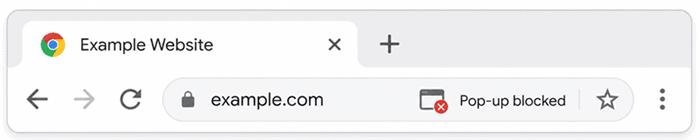
Chrome provides a quick option when it blocks a pop-up.
- Open the website.
- Try the action that should open the pop-up.
- Look at the right side of the address bar.
- Click the Pop-up blocked indicator.
- Select the option to always allow pop-ups and redirects from that website.
- Click Done.
Google recommends site-level controls when a legitimate website needs pop-ups.
This is a good option when you trust the website, but do not want every website to open pop-up windows.
How to Add a Website to Chrome’s Allowed List
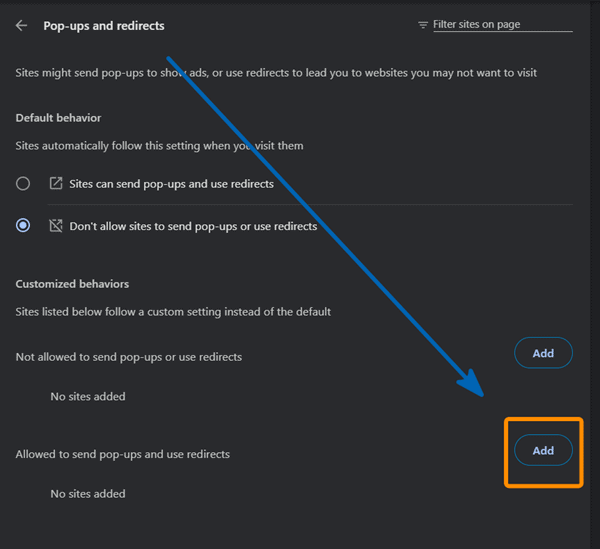
You can add a trusted website to Chrome’s allowed list if you want its pop-ups to work without changing the setting for every site. This lets Chrome continue blocking unwanted pop-ups on other websites while allowing the selected site to open them.
This is how to add a website to the allowed list on Chrome:
- Open Chrome.
- Go to Settings.
- Select Privacy and security.
- Open Site settings.
- Select Pop-ups and redirects.
- Find the section for websites allowed to send pop-ups and use redirects.
- Click Add.
- Enter the website address.
- Save the setting.
This option tells Chrome that you always want to see pop-ups from this website. So, the browser won’t block them.
How to Turn on the Chrome Pop-Up Blocker
If you disabled pop-ups while completing a task, you can restore the protection afterward. Let us check how you can do this.
Go back to:
Chrome → Settings → Privacy and security → Site settings → Pop-ups and redirects
Enable this option: Don’t allow sites to send pop-ups or use redirects.
This option will block pop-ups on all websites (except your allowed list). Keeping the blocker active can reduce unwanted windows and redirects while browsing.
How to Turn Off Pop-Up Blocker in Firefox
Firefox lets you control pop-up blocking from its Privacy & Security settings. You can turn off the pop-up blocker when a trusted website needs to open a new window or tab.
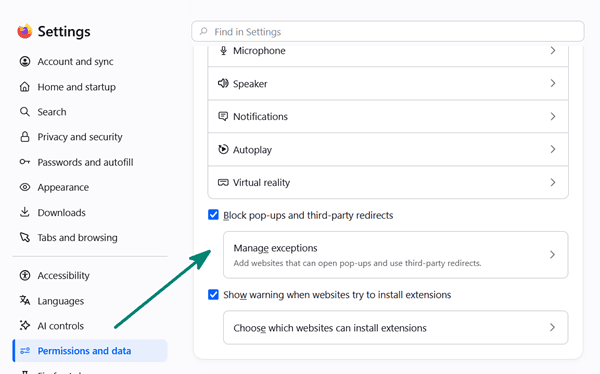
Follow these settings:
- Open Firefox.
- Click the menu button.
- Select Settings
- Scroll to Permissions.
- Find Block pop-up windows.
- Uncheck the box.
Then, you will see pop-ups on all websites.
How to Allow Pop-Ups for One Website in Firefox
Do you want to allow a specific website to serve pop-ups on Firefox? These settings will help you.
- Open Firefox.
- Go to Settings.
- Select Privacy & Security.
- Scroll to Permissions.
- Find Block pop-up windows.
- Click Exceptions or the related exceptions control.
- Enter the website address.
- Click Allow.
- Save the change.
Go back to the website, and you should see pop-ups there now.
How to Turn On the Firefox Pop-Up Blocker
If you previously disabled pop-up blocking in Firefox, you can turn it back on from the browser’s permission settings. Enable the pop-up blocking option to stop websites from opening unwanted new windows or tabs.
Return to Settings → Permissions.
Find the Block pop-up windows option. Select it.
If you previously created an exception for a website, you can keep or remove that exception based on whether you still trust the site.
How to Turn Off Pop-Up Blocker in Microsoft Edge

Microsoft Edge has a built-in pop-up blocker that is enabled by default. Let us check how to manage it.
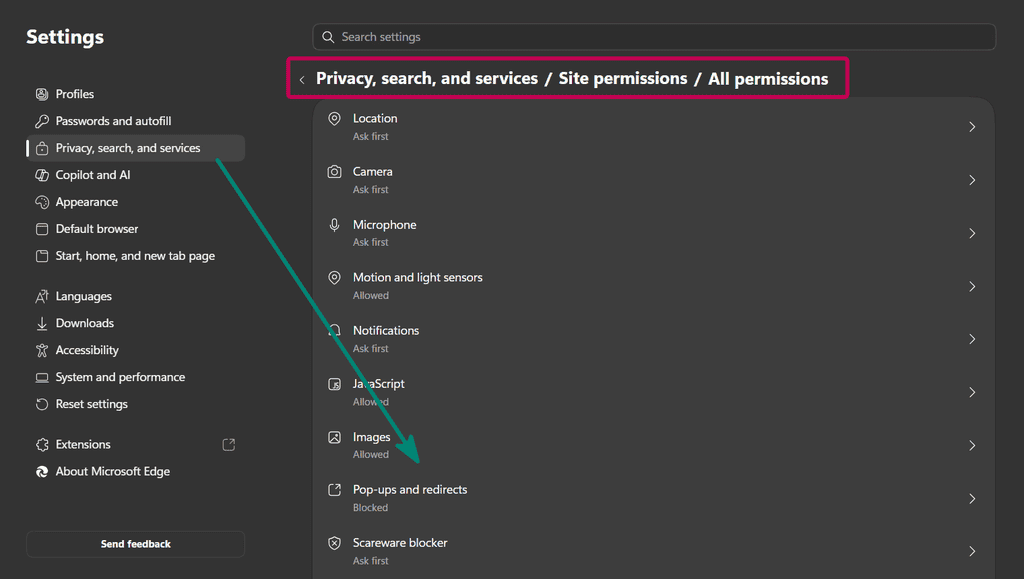
Follow these steps:
- Open Microsoft Edge.
- Open Settings
- Open Privacy, search, and services.
- Select Site permissions.
- Open All permissions.
- Select Pop-ups and redirects.
- Change the blocking setting.
Here, you can enable or disable the blocker.
How to Allow Pop-Ups for a Specific Website in Edge
You can allow pop-ups for a specific website in Microsoft Edge without disabling the blocker for every site. Add the trusted website to Edge’s allowed list, and the browser will permit its pop-ups while continuing to block them elsewhere.
- Open Edge settings.
- Go to Privacy, search, and services.
- Select Site permissions.
- Open All permissions.
- Select Pop-ups and redirects.
- Locate the section Allowed to send pop-ups and use redirects
- Select Add site under it
- Enter the website address.
- Click on Add.
This way lets you enable pop-ups on specific websites rather than enable them globally.
How to Turn Edge’s Pop-Up Blocker
Visit Settings → Privacy, search and services → Site permissions → All permissions → Pop-ups and redirects.
Enable Blocked. This will block pop-up windows again.
How to Turn Off Pop-Up Blocker in Safari on Mac
Safari on Mac lets you manage pop-ups through its website settings. You can turn off pop-up blocking for a specific website or adjust the default setting when you need pop-up windows to open.
Follow these settings:
- Open Safari.
- Click Safari in the menu bar.
- Select Settings.
- Click Websites.
- Select Pop-up Windows from the sidebar.
- Choose the permission you want for the website or for other websites.
Apple lets you control pop-ups for individual websites and set a general rule for websites you have not configured.
How to Allow Pop-Ups for One Website in Safari
Safari lets you allow pop-ups for a specific website while keeping pop-up blocking enabled for other sites. This is useful when a trusted website needs to open a pop-up for a login window, payment page, or document.
Open the website first, then go to:
Safari → Settings → Websites → Pop-up Windows
Find the website in the list and select Allow.
You can return to the same screen later and change the permission.
How to Turn Off Pop-Up Blocker in Brave

Brave lets you control pop-ups through its site and privacy settings. You can allow pop-ups when a trusted website needs to open a new window or tab, while keeping Brave’s protections active on other sites.
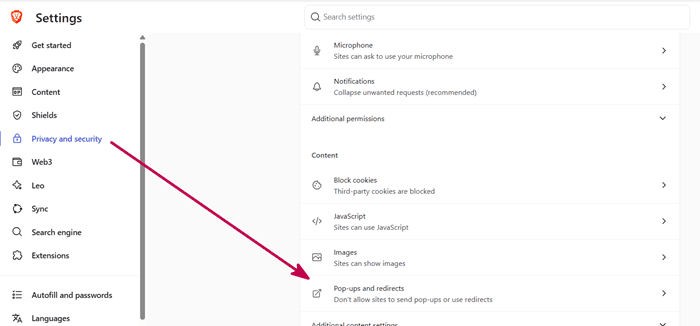
Follow these settings:
- Open Settings.
- Head to Privacy and Security in the left sidebar.
- Locate Site and Shields Settings in the main screen.
- Scroll down to Popups and redirects.
- Select Sites can send pop-ups and use redirects.
This option will turn off the pop-up blocker, serving pop-up windows on all websites.
How to Allow Pop-Ups for One Website in Brave
Brave lets you allow pop-ups for a specific website without changing the setting for every site you visit. Add the trusted website to its allowed list so its pop-ups can open while Brave continues blocking them elsewhere.
Follow these steps:
- Go back to Site and Shields Settings
- Open Pop-ups and redirects.
- Head to Customized behaviors.
- Locate Allowed to send pop-ups and use redirects. Click on Add.
- Enter a website address.
- Click on Add.
Your target website has been successfully added to serve pop-ups.
How to Turn on Pop-Up Blocker in Brave
Go back to Pop-ups and redirects settings. Enable
Don’t allow sites to send pop-ups or use redirects option. Brave will start blocking pop-ups again.
How to Turn Off Pop-Up Blocker on iPhone
The steps depend on the browser you use on your iPhone. If you use Safari, the setting is controlled through the iPhone’s Settings app. If you use Chrome, the setting is inside the Chrome app.
How to Turn Off Pop-Up Blocker in Safari on iPhone
Safari on iPhone lets you turn off pop-up blocking from the device’s Settings app. You can also disable Block Pop-ups when a trusted website needs to open a new window or tab.
- Open Settings on your iPhone.
- Tap Apps.
- Tap Safari.
- Find Block Pop-ups.
- Turn Block Pop-ups off.
Go back to Safari and open websites. You should get pop-ups now.
How to Turn on Safari’s Pop-Up Blocker
Go back to: Settings → Apps → Safari
Turn Block Pop-ups on.
It is a good idea to restore the settings after you finish using a website that requires pop-ups.
How to Turn Off Pop-Up Blocker in Chrome on iPhone
Chrome on iPhone has its own pop-up blocker setting, separate from Safari. You can turn off Block Pop-ups from Chrome’s settings when you want to get pop-up windows.
Follow these steps:
- Open the Chrome app.
- Tap the three-dot More button.
- Tap Settings.
- Select Content Settings.
- Tap Block Pop-ups.
- Select Sites can send pop-ups and use redirects option.
This way, you can get pop-ups on Google Chrome on an iPhone.
How to Allow a Pop-Up in Chrome on iPhone
If Chrome blocks a pop-up on your iPhone, you can allow it directly from the blocked pop-up notification. Tap Always show when the option appears to let the website open pop-ups.
- Open the website in Chrome.
- Trigger the action that should open the pop-up.
- Look for the Pop-ups blocked message.
- Tap Always show.
Google documents this option for Chrome on iPhone and iPad.
How to Turn Off Pop-Up Blocker on Android
Chrome on Android lets you control pop-ups through its Site settings. You can turn off the pop-up blocker when a trusted website needs to open a new window or tab.
- Open Chrome.
- Tap the three-dot menu.
- Tap Settings.
- Select Site Settings under the Advanced menu.
- Scroll down to Content.
- Find and tap Pop-ups and redirects.
- Select Sites can send pop-ups and use redirects option.
You can also allow a pop-up from a specific website when Chrome blocks it. Open the site and use the Always show option when it appears.
How to Turn on the Android Pop-Up Blocker
Return to: Chrome → Settings → Site settings → Pop-ups and redirects
Select Don’t allow sites to send pop-ups and use redirects. That’s it. Chrome will block pop-ups on Android again.
You may also be interested in these posts ↴