
If you want to remove McAfee from your Windows PC, the normal Windows uninstall option is the best place to start. If McAfee does not uninstall properly, or you still see McAfee components after removing the main app, use the official McAfee Consumer Product Removal tool, also known as MCPR.
This guide explains how to uninstall McAfee completely, how to use the McAfee uninstall tool, what to do when McAfee refuses to uninstall, and how to check that your PC is protected after removal.
Direct Answer How Do I Uninstall McAfee?
Open Start > Settings > Apps > Installed apps. Find your McAfee product, select the three-dot menu, and choose Uninstall. Follow the instructions and restart your PC if prompted.
If the normal process fails, download and run McAfee’s official Consumer Product Removal tool (MCPR). Complete the prompts, restart Windows, and check Windows Security to confirm that your PC has active antivirus protection. Microsoft also recommends checking your security status after removing third-party antivirus software.
- What Is The McAfee Uninstall Tool?
- How To Uninstall McAfee From Windows 11
- How To Uninstall McAfee From Windows 10
- How To Uninstall McAfee Through the Control Panel
- Which McAfee Programs Should You Uninstall?
- How To Completely Uninstall McAfee Using The MCPR Tool
- What To Do If McAfee Won't Uninstall
- Should You Delete McAfee Folders Manually?
- How To Remove McAfee WebAdvisor
- How To Check If McAfee Was Completely Removed
- Does Uninstalling McAfee Cancel Your Subscription?
- Can You Reinstall McAfee After Uninstalling It?
- Conclusion
- FAQ
What Is The McAfee Uninstall Tool?
The McAfee uninstall tool is a dedicated utility designed to remove McAfee consumer security products from Windows when the standard uninstall process does not work correctly.
The tool is called the McAfee Consumer Product Removal tool, or MCPR.
You may also see it described as the:
- McAfee uninstall utility
- McAfee uninstaller
- McAfee removal tool
- McAfee cleanup tool
- MCPR tool
These names usually refer to the same McAfee removal utility.
For a beginner, the key point is simple: try Windows’ normal uninstall process first. Use MCPR when you cannot remove McAfee properly through Windows.
Microsoft also notes that some security software may not uninstall completely through the normal process. In such cases, they recommend using the software publisher’s removal instructions or support resources.
That is why the official McAfee tool is a safer choice than downloading a random third-party uninstaller.
How To Uninstall McAfee From Windows 11
Windows 11 provides a straightforward way to remove installed applications.
Before you start, save your work and close open programs. Removing antivirus software can temporarily leave your PC without active third-party antivirus protection, so plan to check Windows Security immediately afterwards.
Microsoft warns that a PC can be unprotected during antivirus removal if no other security product is active.
Step 1: Open Windows Settings
Click Start and select Settings.
You can also press Windows + I on your keyboard.
Step 2: Open Installed Apps
Select:
Apps > Installed apps
You will see a list of applications installed on your computer.
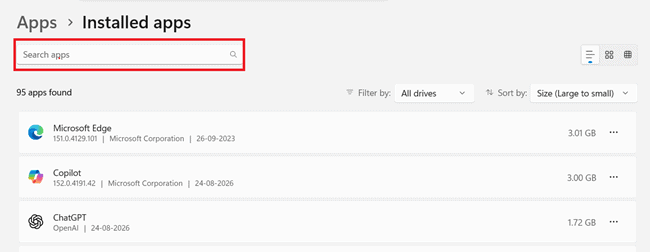
Windows provides this location as one of its standard methods for removing applications.
Step 3: Search For McAfee
Use the search box and type McAfee.
You may see a McAfee security product, WebAdvisor, or another McAfee-related component.
Do not assume that every item with the McAfee name is the same program. Read the product name before removing it.
Step 4: Select Uninstall
Click the three-dot menu next to the McAfee application.
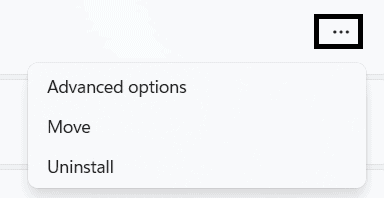
Select Uninstall.
Windows may ask you to confirm the action.
Step 5: Follow The McAfee Instructions
The McAfee uninstaller may open its own window.
Read the prompts and confirm that you want to remove the software.
You may see options to keep settings, remove the product, or provide feedback. Follow the removal option shown by the uninstaller.
Step 6: Restart Your PC
Restart Windows when the uninstaller asks you to do so.
A restart gives Windows a chance to stop services and complete changes that could not be finished while the system was running.
How To Uninstall McAfee From Windows 10
The process is also simple on Windows 10.
Open:
Start > Settings > Apps > Apps & features
Find the McAfee product and select Uninstall.
Follow the instructions displayed by the McAfee uninstaller. Restart your computer when requested.
Microsoft also supports uninstalling desktop programs through Control Panel > Programs > Programs and Features. If McAfee does not appear in the Windows Settings list, check the Control Panel.
How To Uninstall McAfee Through the Control Panel
If McAfee doesn’t appear in Windows Settings, you can try removing it through the Control Panel. This method is simple and works well on older Windows versions and some traditional desktop installations.
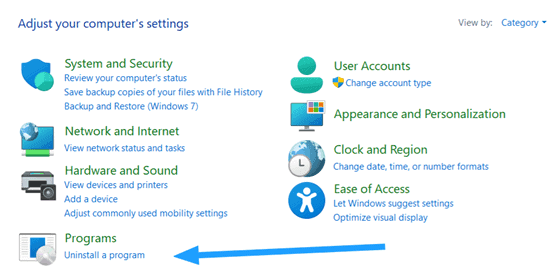
- Open Windows Search.
- Type Control Panel.
- Open Control Panel.
- Select Programs.
- Select Programs and Features.
- Find the McAfee product.
- Right-click it.
- Select Uninstall.
- Follow the on-screen instructions.
- Restart the PC if requested.
This is particularly useful on older Windows installations or when a traditional desktop installer does not appear correctly in the Settings app.
Which McAfee Programs Should You Uninstall?
Your PC may contain more than one McAfee-related application.
For example, you might see:
- McAfee LiveSafe
- McAfee Total Protection
- McAfee Security
- McAfee WebAdvisor
- McAfee Security Scan
- Other McAfee components
The exact list depends on your PC, Windows version, product bundle, and how McAfee was installed.
If your goal is to remove McAfee completely, review the installed McAfee entries and remove the products you no longer want.
Do not remove Windows security components simply because their names look related to antivirus software. If you are unsure about an entry, check its publisher and product name before removing it.
How To Completely Uninstall McAfee Using The MCPR Tool
The normal Windows uninstaller should be your first choice. If that process fails, use McAfee’s Consumer Product Removal tool to remove McAfee from your PC.
MCPR is particularly useful when:
- McAfee does not uninstall correctly.
- The McAfee application is missing from the installed apps.
- The uninstaller stops responding.
- McAfee components remain after removal.
- You plan to install another security product and want to clear the old McAfee installation first.
Step 1: Get The Official MCPR Tool
Download MCPR from McAfee’s official support resources.
Do not search for a random “McAfee uninstall utility download” and choose the first executable you find. A removal utility has system-level access, so its source is important.
Step 2: Save Your Work
Close open applications and save documents before running MCPR. The removal process requires a restart.
Step 3: Run MCPR
Open the downloaded MCPR file.
Windows may display a User Account Control prompt asking whether you want to allow the program to make changes.
Confirm the prompt if you downloaded the tool from McAfee’s official source.
Step 4: Follow The Removal Prompts
MCPR guides you through its removal process. Follow each instruction shown on the screen.
The tool may ask you to accept its terms and complete a security verification step. Older MCPR documentation also describes a CAPTCHA-style verification step before removal continues.
Step 5: Wait For The Process To Finish
Do not close MCPR while it is working. The process can take a few minutes.
You may see a message telling you that the removal was successful or that a restart is required.
Step 6: Restart Windows
Restart your computer when MCPR tells you to.
This step is important because some security components cannot be fully removed while Windows is running normally.
Step 7: Check Your PC
After Windows starts again, search for McAfee under Installed apps. You should also check Windows Security.
If you have removed your third-party antivirus, Microsoft Defender Antivirus should normally become active again when no compatible third-party antivirus is running. Microsoft says Defender automatically turns off when another compatible antivirus is active and returns to active mode after that software is removed.
What To Do If McAfee Won’t Uninstall
If McAfee refuses to uninstall, don’t worry. The problem is usually easy to fix. Try the basic troubleshooting steps below before using advanced methods or manually deleting McAfee files.
Start with the safest options.
1. Restart Windows
A pending Windows update, locked file, or running McAfee process can interfere with removal. Restart the computer and try the uninstall process again.
2. Try Control Panel
If McAfee does not appear under Settings > Apps > Installed apps, check Control Panel > Programs and Features.
Windows supports both methods.
3. Use MCPR
If the standard uninstaller continues to fail, use the official McAfee removal tool.
This is the main reason MCPR exists. You do not need to start with registry cleaners or third-party system utilities.
4. Check For A McAfee Process
If McAfee is still running, you may see McAfee-related processes in Task Manager.
Do not start killing random system processes just to force the uninstall. Use the official removal process first.
5. Use Windows Troubleshooting If The Uninstaller Is Broken
Microsoft provides troubleshooting guidance for programs that cannot be installed or removed.
If Windows reports an installation or removal problem, follow Microsoft’s troubleshooting steps before attempting advanced system changes.
Should You Delete McAfee Folders Manually?
No. Manual deletion should not be your first approach. You may find McAfee folders under locations such as Program Files after an incomplete removal. It can be tempting to delete them.
That can create a new problem.
Security software can use services, drivers, permissions, and other system components. Removing one folder does not necessarily remove those components.
Manual Registry editing is even riskier for beginners.
A better sequence is:
Windows uninstall → restart → MCPR → restart → verify Windows Security
This approach is easier to follow and reduces the risk of damaging Windows.
How To Remove McAfee WebAdvisor
McAfee WebAdvisor can remain installed as a separate product or browser component. If you want to remove it, first check your installed applications.
Go to:
Settings > Apps > Installed apps
Search for McAfee WebAdvisor.
If it appears, open its three-dot menu and select Uninstall.
You can also check your web browser for McAfee-related extensions. For example, in a Chromium-based browser, open the extensions page and look for an extension associated with McAfee WebAdvisor.
Only remove an extension if you recognize it as the McAfee component you no longer want. After removing it, restart the browser.
How To Check If McAfee Was Completely Removed
After uninstalling McAfee, it’s worth taking a minute to confirm that it’s really gone. A few simple checks can help you find any remaining McAfee components and make sure your PC still has active security protection.
Take a minute to verify the result.
Check Installed Apps
Open: Settings > Apps > Installed apps
Search for McAfee.
If you no longer see the McAfee products you intended to remove, that is a good sign.
Check Windows Security
Open the Start menu and search for Windows Security.
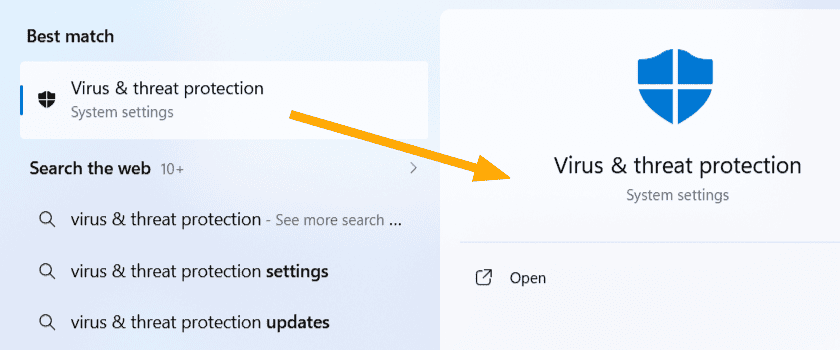
Select: Virus & threat protection
Then check the security provider information.
Microsoft provides a Manage providers option that lets you see which antivirus product is protecting the PC.
Check Real-Time Protection
Look at the status of Microsoft Defender Antivirus. If Defender is active, Windows should show its current protection status.
Windows Security includes Microsoft Defender Antivirus, Windows Firewall, and other security features.
Run A Quick Scan
You can also run a quick scan from:
Windows Security > Virus & threat protection > Quick scan
Microsoft provides quick, full, custom, and offline scan options through Windows Security. This is a useful final check after removing antivirus software.
Does Uninstalling McAfee Cancel Your Subscription?
No. Removing McAfee from your computer is not the same as cancelling your McAfee subscription.
These are two separate actions. If you purchased a McAfee subscription and no longer want to pay for it, check your McAfee account and subscription settings.
Uninstalling the software does not automatically mean that you have cancelled billing. This distinction is easy to miss. Someone can remove McAfee from a laptop and still have an active subscription.
If you are moving to another antivirus product, handle the software removal and subscription decision separately.
Can You Reinstall McAfee After Uninstalling It?
Yes.
Removing McAfee from Windows does not mean you can never install it again. If you have a valid subscription, you can use McAfee’s official account and download resources to reinstall the product.
This can be useful if you removed McAfee while troubleshooting a corrupted installation and later decide to use it again.
If you are reinstalling because another security product would not install, make sure the previous McAfee installation has been properly removed first. A clean removal can help prevent conflicts between security products.
5 Best McAfee Alternatives
If you removed McAfee because you want another security product, these five are worth considering. Independent testing from AV-Comparatives continues to include products such as Bitdefender, Norton, Microsoft, ESET, Malwarebytes, Avast, and others in its consumer protection tests.
1. Bitdefender
A strong choice for users who want excellent malware protection with a simple interface and a broad range of security features.
2. Norton
A feature-rich security suite with antivirus protection, identity tools, VPN features, and family-focused options.
3. ESET
A good pick for users who want strong protection, low system impact, and more control over security settings.
4. Malwarebytes
A beginner-friendly security product known for malware detection and useful scanning tools.
5. Avast
A flexible option with a free tier and a broad collection of security and privacy features.
Recent 2026 testing gives Bitdefender, Avast, Norton, Microsoft, ESET, and Malwarebytes strong positions across consumer security tests, although test results vary by category and test period.
If you only need basic protection on a modern Windows PC, you can also consider staying with Microsoft Defender rather than installing another third-party antivirus. Microsoft says Windows 11 includes built-in antivirus protection that is active by default.
Conclusion
Learning how to uninstall McAfee does not require advanced Windows knowledge.
Start with the built-in Windows uninstall option. Open Settings > Apps > Installed apps, find McAfee, and select Uninstall. If that process fails, use the official McAfee Consumer Product Removal tool (MCPR).
After the removal finishes, restart your PC and check Windows Security. Confirm that Microsoft Defender or another trusted antivirus product is active.
Most importantly, do not rush into manual Registry edits or random cleanup tools. The safest path for a beginner is simple: use Windows’ uninstaller first, MCPR when needed, and Windows Security to confirm that your PC remains protected.

