
Direct Answer
To block a YouTube channel, click the three-dot menu next to a video and select Don’t recommend channel. To hide Shorts, click the X on the Shorts shelf to dismiss it for 30 days. To block the entire YouTube website or restrict access for kids, use browser extensions like BlockSite or parental control tools like Google Family Link.
You sit down at your computer with the best intentions. Probably, you are going to study, finish that work project, or just learn a quick recipe. You open up your browser, navigate to YouTube for a quick tutorial, and suddenly, it happens.
You saw a thumbnail that catches your eye. Then another. Then you click on a YouTube Short. Before you know it, three hours have vanished into thin air, and you are deep into a rabbit hole watching videos about how they build cruise ships or a ten-part drama about internet celebrities you don’t even know.
YouTube is an incredible platform—arguably the best learning tool in human history. But it is also a time-sink. Its algorithm is designed by some of the world’s smartest engineers to do exactly one thing: keep you on the platform for as long as humanly possible.
Whether you are a parent trying to protect your children from inappropriate content, a student trying to figure out how to block YouTube on my computer to save your grades, or just someone who is sick and tired of the endless scrolling, you need to take back control.
In this guide, we are going to look under the hood of the platform. We will cover exactly how to block on YouTube, how to block YouTube Shorts permanently, how to curate your homepage feed so you only see what you want to see, and even how to flip the script and figure out how to watch a blocked video on YouTube when you are facing unfair geographical restrictions.
Part 1: How to Block Videos on YouTube (and Clean Up Your Feed)
The first step in taking back control is understanding that you do not have to be a passive consumer. You can actively tell the YouTube algorithm what you hate.
When people ask how to block videos YouTube, they usually mean one of two things: they want to stop seeing a specific annoying creator on their homepage, or they want to block a specific type of content entirely from their kids. Let’s EXPLORE both scenarios.
Method 1: The “Don’t Recommend Channel” Feature
If there is a specific creator whose face keeps popping up on your homepage and it is driving you crazy, you can block them with three simple clicks.
On Desktop:
- Go to the YouTube homepage.
- Hover your mouse over the video thumbnail of the channel you want to get rid of.
- Look for the three vertical dots (the menu icon) that appear next to the video title. Click them.
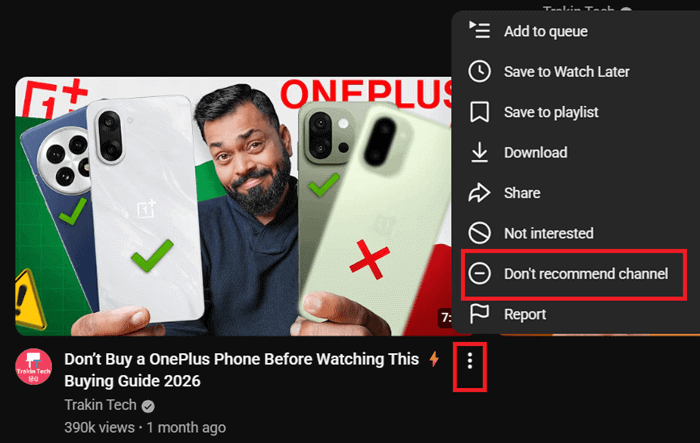
- From the drop-down menu, select “Don’t recommend channel”.
- The video will disappear, and YouTube will show an “Undo” button just in case you clicked it by mistake. From now on, the algorithm will stop serving you videos from that specific creator.
On Mobile App:
- Open the YouTube app.
- Find the offending video in your feed.
- Tap the three vertical dots next to the video title.
- Tap “Don’t recommend channel”.
Method 2: The “Not Interested” Button for Specific Topics
Sometimes it is not the creator, but the topic that is the problem. Let’s say you watched one single video about a video game, and now your entire homepage is flooded with gaming videos.
To fix this, you use the “Not Interested” tool.
- Click the three dots next to the video title.
- Click “Not Interested”.
- Crucial Step: After you click it, YouTube will ask “Tell us why.” Click that prompt and select “I don’t like the video” or “I’ve already watched the video.”
Doing this repeatedly trains the AI. Over a few days, your homepage will completely change its tone and start offering you better content.
Method 3: How to Actually Block Content from Kids (Parental Controls)
The methods above just “hide” videos from your feed. If you search for them, they will still show up. If you are a parent, that is not good enough. You need hard limits.
Using Restricted Mode:
Restricted Mode is a hidden setting that uses community flagging and age restrictions to screen out potentially mature content. It is not 100% perfect, but it filters out a lot of the bad stuff.
- On desktop, click your profile picture in the top right corner.
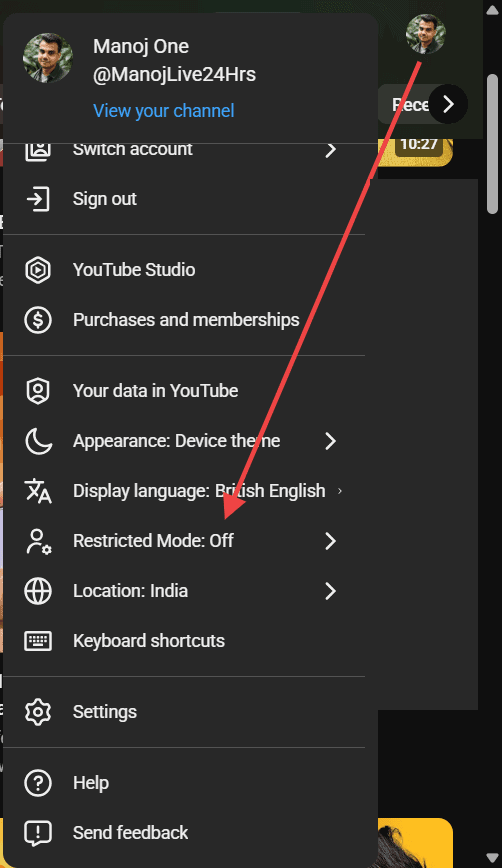
- Scroll down to the bottom of the menu and click Restricted Mode: Off.
- Toggle the switch to turn it On.
- You will need to do this on every browser and device your child uses.
Using the YouTube Kids App:
If your children are under 12, they should not be on the main YouTube app at all. Period. Download the YouTube Kids app.
Inside the parent settings of the Kids app, you can select “Approved Content Only.” This means your child can only watch videos, channels, and collections that you have manually hand-picked and approved. It is the best way to block out the unwanted videos.
Part 2: How to Block YouTube Shorts (Desktop & Mobile)
Let’s talk about YouTube Shorts.
When TikTok took over the world, YouTube introduced Shorts to compete. For many users, this ruined the website. Shorts are highly addictive.
If you are trying to figure out how to block YouTube Shorts, you are not alone. It is currently one of the most highly requested features on the internet. Since YouTube refuses to give us a simple “Turn off Shorts” button (because it makes them too much money), we have to take matters into our own hands.
Removing Shorts on Desktop (The Best Method)
If you watch YouTube on a computer, you are lucky. This is the easiest place to completely block Shorts using browser extensions.
1. The “Unhook” Extension (Highly Recommended)
Unhook is a free, safe browser extension available for Google Chrome, Firefox, and Microsoft Edge. It is a total game-changer for productivity.
- Go to your browser’s extension store and search for “Unhook – Remove YouTube Recommended Videos“.
- Install the extension and click its icon in your browser toolbar.
- You will see a menu of toggles. You can literally turn off the entire internet.
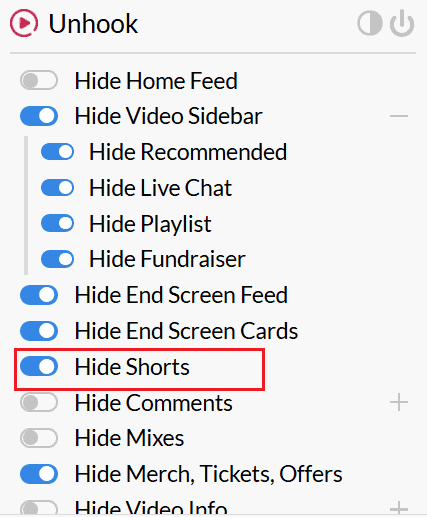
- Toggle “Hide Shorts”
Bonus: You can also use Unhook to hide the comments section, hide the sidebar recommendations, and even hide the homepage entirely, leaving you with nothing but a search bar.
2. The “BlockTube” Extension
If you want more control, BlockTube is another fantastic extension. It allows you to block specific keywords. For example, you can block any video title that contains the words “Prank,” “Drama,” or “Gossip.”
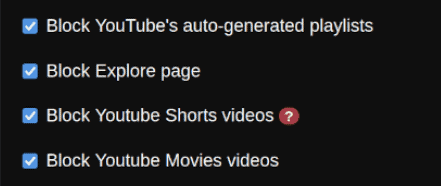
It also has a built-in feature that automatically redirects any YouTube Shorts link to the regular YouTube video player, so the video plays like a normal video, and you aren’t stuck in the vertical swiping interface.
Removing Shorts on the Mobile App (The Workarounds)
Blocking Shorts on your phone is much harder because Apple and Google do not allow you to install extensions on the native YouTube app. However, there are a few practical methods.
The 30-Day “Not Interested” Trick:
- Open the YouTube app and scroll down until you see the “Shorts” shelf (the row of vertical videos on your home screen).
- On every single Short in that row, tap the three dots in the corner of the thumbnail.
- Tap “Not Interested”.
- Do this for every Short on the shelf until the shelf completely disappears.
YouTube will hide the Shorts shelf for exactly 30 days. After a month, it will pop back up, and you will have to repeat the process.
Part 3: How to Block YouTube on My Computer Completely
Sometimes, curating your feed and hiding Shorts isn’t enough. When final exams are approaching or a project deadline is looming, you need the advanced option. You need to know how to block YouTube on my computer completely so that if you type in the web address, it simply will not load.
Here are the three best ways to do it, ranging from easy to highly technical.
Method 1: Blocking via Browser Extensions (Easy but Easy to Bypass)
If you just need a gentle nudge to stay on task, browser extensions are your best friend.
Using BlockSite:
- Download the BlockSite extension for Chrome, Edge, or Firefox.
- Open the extension settings and add youtube.com to your blocked list.
- Turn on “Work Mode.”
- Whenever you try to go to YouTube, BlockSite will redirect you to a screen showing a funny meme telling you to get back to work.
When your willpower is low, it takes exactly three seconds to click “Disable Extension” and go back to watching videos. If you need something stricter, move to Method 2.
Method 2: Blocking via the Hosts File (Harder to Bypass)
Every Windows and Mac computer has a hidden text file called the “Hosts file.” Your computer checks this file before it connects to the internet.
If you tell the Hosts file that YouTube doesn’t exist, your computer will physically refuse to load the website, no matter which browser you use.
How to do it on Windows:
- Click the Start button, type Notepad, right-click it, and select Run as administrator. (You must do this, or it won’t let you save the file).
- In Notepad, click File > Open.
- Navigate to: C:\Windows\System32\drivers\etc
- Change the file type in the bottom right corner from “Text Documents” to “All Files”.
- Double-click the file named hosts.
- Scroll to the very bottom of the text. Press Enter to start a new line.
- Type exactly this: 127.0.0.1 youtube.com
- Press Enter and type: 127.0.0.1 www.youtube.com
- Click File > Save, and close Notepad.
- Now, open your browser and try to go to YouTube. It will say the site cannot be reached. To undo this, you just repeat the steps and delete those two lines.
How to do it on Mac:
- Open the Terminal app (Command + Spacebar, type Terminal).
- Type this command and press Enter: sudo nano /etc/hosts
- It will ask for your computer login password. Type it (the letters won’t show up on screen; that is normal) and hit Enter.
- Use your keyboard arrows to scroll down to the bottom of the file.
- Type: 127.0.0.1 youtube.com
- Type: 127.0.0.1 www.youtube.com
- Press Control + O to save, press Enter to confirm, and press Control + X to exit.
- YouTube is now blocked at the system level!
Method 3: Router-Level Blocking (The Ultimate Block)
If you want to block YouTube on your computer, your smart TV, your kid’s iPad, and your phone all at the same time, you need to block it at the source: your Wi-Fi router.
- Find your router’s IP address (usually printed on a sticker on the back of the router, looking something like 192.168.1.1).
- Type that number into your web browser and hit Enter.
- Log in with your admin username and password (also usually on the sticker).
- Look for a menu called Parental Controls, Access Restrictions, or Security.
- Find the URL blocking or Domain blocking section.
- Type in youtube.com and m.youtube.com.
- Save your settings and restart the router.
- Now, any device connected to your home Wi-Fi will be completely unable to access the site.
Part 4: How to Watch a Blocked Video on YouTube
If a YouTube video is blocked in your country, you have several ways to watch it. The safest and most effective method is using a VPN (Virtual Private Network).
A VPN makes it seem like you’re browsing from another country, bypassing the regional block. Simply connect to a server in a location where the video is available, refresh the page, and it should play. Proton (free), Nord, and Express are popular VPN services for watching blocked YouTube videos.
Another free option is a proxy website, where you paste the video’s URL. However, this method is often slow and filled with ads. Eg, CroxyProxy or Hide.me Proxy.
Finally, you can use a YouTube downloader website. These sites can download the video file directly to your device, allowing you to watch it offline and bypass the geographic restrictions entirely.
Part 5: Managing Mobile Addiction (iOS & Android)
We covered how to block the site on a computer, but what about your phone?
Our smartphones are always with us, making them the biggest source of distraction. If you want to block YouTube on your phone, you don’t need fancy extensions; the tools are built right into your operating system.
How to Block YouTube on iPhone (Apple Screen Time)
Apple’s Screen Time is incredibly powerful if you use it correctly. You can set strict time limits or block the app entirely.
- Open your iPhone Settings.
- Tap on Screen Time.
- Tap App Limits and then Add Limit.
- Scroll down to “Entertainment” and select YouTube.
- Tap Next. Now, set the timer. If you want it completely blocked, set the timer to 1 minute.
- Ensure the toggle for “Block at End of Limit” is turned on.
Pro-Tip: Have a friend or spouse set the “Screen Time Passcode” for you. If you know the password, you will just hit “Ignore Limit” when you get weak. If they hold the password, the block is unbreakable.
Blocking YouTube on Android (Digital Wellbeing)
Android phones have a similar built-in feature designed to combat screen addiction.
- Open your Android Settings.
- Scroll down and tap Digital Wellbeing & parental controls.
- Tap on Dashboard.
- Scroll down your list of apps until you find YouTube.
- Tap the little hourglass icon next to it (the App Timer).
- Set the timer to 0 hours and 0 minutes.
The YouTube app icon will instantly turn gray on your home screen. If you tap it, your phone will gently remind you that your timer has run out for the day, and it will refuse to open the app.
You may also be interested in these posts ↴

